Getting Started
Import Common Game System, run the demo, and confirm all 23 services started — in about five minutes.
Common Game System (CGS) is a C# foundation framework for Unity 6.3 LTS: 23 ready-made services — saving, audio, input, scene loading, timers, tweening, and more — that start themselves when you press Play. This page takes you from an empty project to a running framework in about five minutes. No code required yet.
1. Import the package
- Open your Unity 6.3 LTS project (or create a new one — any template works).
- Open Window > Package Manager, choose My Assets in the top-left dropdown.
- Find Common Game System, click Download, then Import.
- In the import dialog, leave everything selected and click Import. Deselecting folders on a first import can remove pieces the framework needs — samples and docs are plain files you can delete later.
Unity compiles for a few seconds. Don't worry that your Project window shows mostly scripts and documentation afterward — CGS is a code framework, not a pile of prefabs. Nothing needs to be dragged into a scene, ever.
2. Meet the Welcome window
When compilation finishes, the CGS Welcome window opens by itself. It is the front door to everything: the demo, the six samples, the manual, and the framework tests.
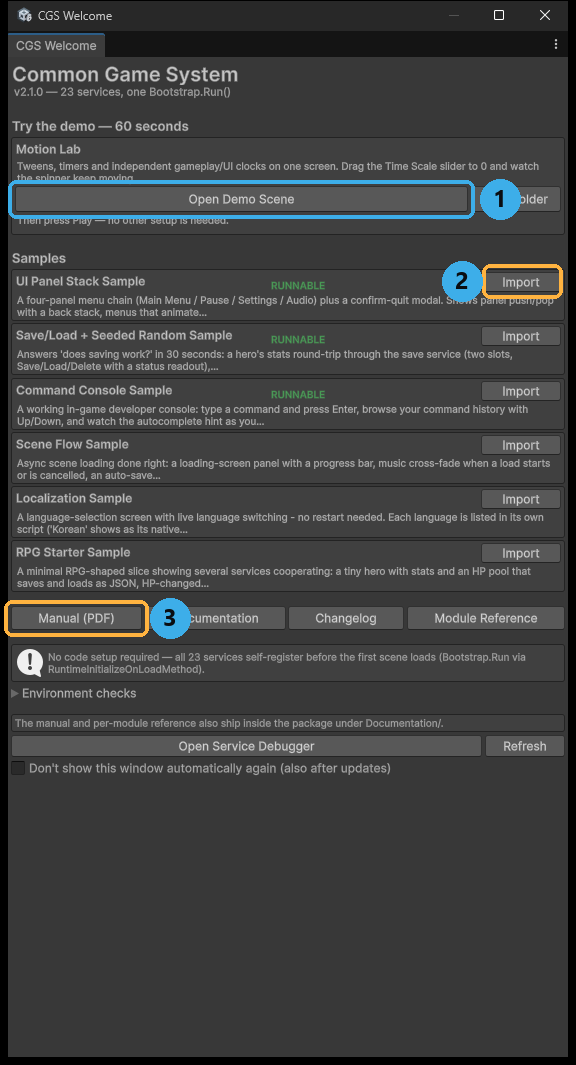
The Welcome window: demo at the top, one-click sample imports, quick links, environment checks, and the tests/Service Debugger footer.
If it did not appear (some editor layouts suppress pop-ups during import), open it from Tools > Common Game System > Welcome or Window > Common Game System > Welcome.
One check worth doing now: if the window shows a yellow warning about the input backend, click its Enable the new Input System (restarts the editor) button and let the editor restart. Without it, the demo and samples cannot receive mouse or keyboard input.
3. Run the demo
- In the Welcome window's top section, click Open Demo Scene. This loads Motion Lab, the framework's runnable showcase (
Assets/CommonGameSystem.Core/Demo/MotionLab.unity). - Press Play. No setup, no configuration — the scene works as imported.
- Watch the easing gallery animate, then try the controls: an easing-curve gallery (the tween service), chained timelines (tween sequences), and repeating counters (the scheduler).
4. The moment that sells the framework
Drag the Time Scale slider to zero.
The gameplay animations freeze — but the small UI clock spinner keeps turning. That is the time service's separate clocks at work: gameplay, UI, and background each run on their own stream of time. It is how you build a pause menu whose buttons still animate while the world is frozen, without touching Unity's global Time.timeScale.
5. Read the one line that matters
Stop dragging, look at the Console window. Near the top of the Play session you will find:
bootstrap complete (v2.1.0, 23 services)
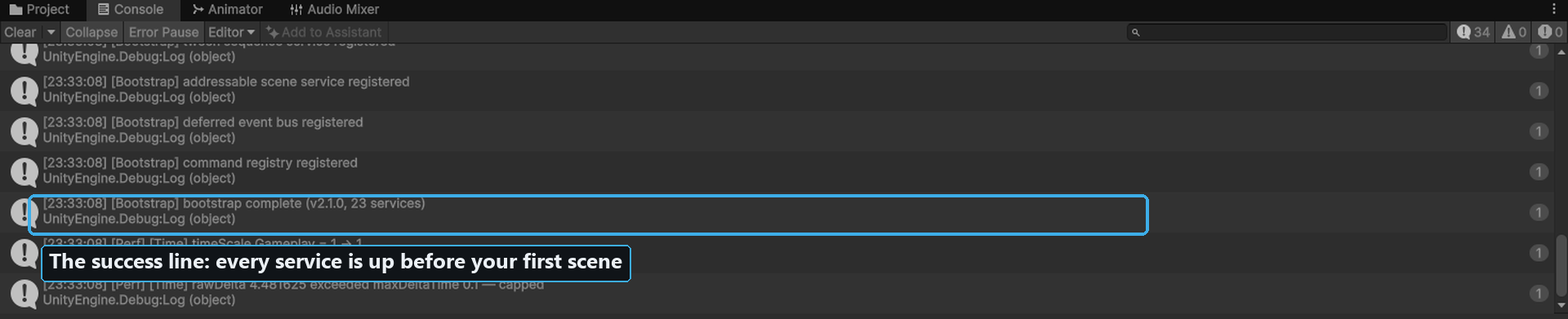
The boot line in the Console. This single message confirms all 23 services registered themselves before your scene ran.
That line is the whole installation story. Every service started automatically, before the first frame, without you adding a single component — and every project you use CGS in starts exactly the same way. Your code just asks for a service and uses it:
var audio = ServiceLocator.Resolve<IAudioService>();
audio.PlaySfx(clickClip);
Where to go next
The manual (also in the package as Documentation/CGS-Manual.pdf):
- 1. What You Get — all 23 services at a glance, and what CGS deliberately is not.
- 2. Installation and Your First Five Minutes — the long version of this page, including what each part of Motion Lab demonstrates.
- 3. The Welcome Window and the Samples — the six samples (three runnable, three script templates) and the hidden 2,600+ test suite.
- 4. Your First Script — copy-paste snippets for saving, events, timers, tweening, and input.
- 5. Core Concepts — the five ideas behind every service.
The service reference — one page per service with full API, examples, and gotchas. Start with the ones the demo just showed you: Time, Tween, Scheduler, Tween Sequencing — or browse the full index.
Stuck? The FAQ covers the issues new users actually hit, starting with "nothing appeared in my scene" and dead mouse/keyboard input.