5. Core Concepts
The five ideas behind every CGS service — bootstrap, service locator, clocks, events, and null implementations — plus a glossary.
Five ideas explain the whole framework. Once you know them, every one of the 23 services works the same way. This chapter covers each idea in plain words, with short code you can paste into your project. A glossary at the end defines every technical term used in this manual.
5.1 The bootstrap: everything starts by itself
Common Game System has no prefab to drag into a scene, no manager object, and no initialization call. When you press Play, Unity runs the framework's start-up code automatically, before your first scene loads. That start-up step is called the bootstrap. It creates all 23 services in the correct order and registers each one so your code can find it.
You can confirm it worked by looking at the Console after pressing Play. The last start-up line reads:
bootstrap complete (v2.1.0, 23 services)
You never call the bootstrap yourself. It runs exactly once per Play session, and calling it a second time throws an error on purpose. By the time any Awake() in your scene runs, every service is already alive and waiting. Full reference: Bootstrap.
5.2 The service locator: ask once, keep the answer
A service is one self-contained feature — saving, audio, timers, input — reachable through a single C# interface. The service locator is the phone book that holds all of them. You ask it for a service by interface, and it hands back the running instance:
using CommonGameSystem.Core;
using UnityEngine;

[DefaultExecutionOrder(100)] // run after the framework has started
public class GameSetup : MonoBehaviour
{
    private ITimeService _time;
    private ISaveService _save;

    private void Awake()
    {
        // Ask once, keep the answer.
        _time = ServiceLocator.Resolve<ITimeService>();
        _save = ServiceLocator.Resolve<ISaveService>();
    }
}
Two habits keep this fast and safe:
- Resolve once, in
Awake()orStart(), and store the result in a field. Each lookup is a dictionary search. Calling it every frame wastes time for no benefit. - Put
[DefaultExecutionOrder(100)]on classes that resolve services inAwake(). It makes Unity run your script after the framework's own objects, so every service is ready.
If a service might not exist — for example, you removed an optional Unity package — use ServiceLocator.TryResolve<T>(out var service) instead. It returns false rather than throwing. Full reference: Service Locator.
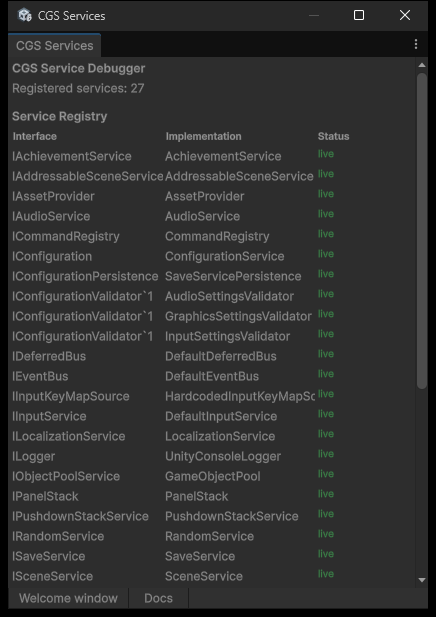
The Service Debugger window (Tools > Common Game System > Service Debugger) lists every registered service while you play. If a service you expect is missing here, its optional Unity package is probably not installed — see chapter 7.2. The count shown can be higher than 23 — the framework registers a few internal helpers alongside the 23 public services.
5.3 Clocks: three speeds of time
A clock is an independent stream of time. The framework runs three: Clock.Gameplay, Clock.UI, and Clock.Background. Each one can pause or slow down without touching the other two. This solves a classic bug: you pause the game, and suddenly your menu animations freeze and your music stops too.
- Gameplay — your world: characters, physics reactions, cooldowns. Pause menus stop this clock.
- UI — menus and overlays. Keeps running while gameplay is paused, so buttons still animate.
- Background — music and anything that should never stop.
A pause menu becomes two lines:
using CommonGameSystem.Core;
using UnityEngine;

[DefaultExecutionOrder(100)]
public class PauseMenu : MonoBehaviour
{
    private ITimeService _time;

    private void Awake() => _time = ServiceLocator.Resolve<ITimeService>();

    public void Open()  => _time.Pause(Clock.Gameplay);   // world freezes
    public void Close() => _time.Resume(Clock.Gameplay);  // world resumes
}
Read time per clock with _time.DeltaTime(Clock.Gameplay) instead of Unity's Time.deltaTime. Slow motion is one call: _time.SetTimeScale(Clock.Gameplay, 0.3f) — the UI and music keep normal speed. Timers from the scheduler and animations from the tween service each bind to a clock, so they pause and slow down correctly with no extra code. One rule: do not set Unity's global Time.timeScale yourself, because that would fight the per-clock system. Full reference: Time.
5.4 Events: subscribe, keep the handle, dispose it
The event bus lets systems talk without knowing about each other. One script publishes an event object; every subscriber to that event type is called immediately, in the order they subscribed. Subscribing returns a small handle. Disposing that handle unsubscribes you. Forgetting to dispose it leaves your handler registered forever — that is a memory leak.
using System;
using CommonGameSystem.Core;
using UnityEngine;

// Events are plain classes you define yourself.
public class ScoreChanged
{
    public int NewScore;
}

[DefaultExecutionOrder(100)]
public class ScoreLabel : MonoBehaviour
{
    private IEventBus _events;
    private IDisposable _subscription;

    private void Awake()   => _events = ServiceLocator.Resolve<IEventBus>();
    private void OnEnable() => _subscription = _events.Subscribe<ScoreChanged>(OnScore);
    private void OnDisable() => _subscription?.Dispose(); // always unsubscribe

    private void OnScore(ScoreChanged e) => Debug.Log($"Score: {e.NewScore}");
}
Publishing is one line from anywhere: _events.Publish(new ScoreChanged { NewScore = 100 });. Two details worth knowing: event types must be classes (not structs), and a subscriber that throws an exception never blocks the other subscribers — the error is logged and delivery continues. Full reference: Event Bus.
5.5 Null implementations: every service has an off switch
Every service ships with a matching Null implementation — a version that accepts every call and does nothing. Registering it switches that subsystem off without changing a single caller. Muting all audio, everywhere, is one line:
ServiceLocator.Replace<IAudioService>(new NullAudio());
Every PlayMusic and PlaySfx call in your project still compiles and still runs — it just does nothing. This is useful for tests, headless servers, voice-recording sessions, or replacing a subsystem with your own solution. Chapter 7.4 lists the off switch for all 23 services, plus one extra clean-up line you should add when swapping certain services mid-session.
5.6 Glossary
| Term | Meaning |
|---|---|
| Service | One self-contained framework feature (saving, audio, timers), used through a single C# interface. |
| Resolve | Asking the service locator for a service by its interface. Do it once and keep the reference in a field. |
| Bootstrap | The automatic start-up step that creates and registers all 23 services before your first scene loads. You never call it. |
| Clock | One of three independent time streams (Gameplay, UI, Background). Each can pause or slow down separately. |
| Tween | A short animation that moves a value smoothly from a start to an end over a set duration, shaped by an easing curve. |
| Action map | A named group of input actions (such as "Gameplay" or "Menu") inside a Unity Input System asset. Only enabled maps react to the player. |
| Addressables | Unity's optional package for loading assets on demand by a text address instead of a direct reference. |
| IL2CPP | Unity's build mode that converts C# to native code. It removes classes that look unused, which is why your save classes need a link.xml entry (chapter 6.3). |