The demo map
Six working stations in one room: what each station shows and which events drive it.
Assumes you have finished quick-start.
The demo map is the quick-start with the typing already done: one room, six stations, two
PlayerStarts and a sign that tells you whether you are running the way this kit is meant to be
run. Every visual in it - a counter, a turning wheel, a light, a swinging door, a key that comes
back - is driven by the events the quick-start taught you to bind, and by almost nothing else:
the whole map contains exactly two nodes outside the Simple set, both on the -X side and
both called out where they are used.
Engine support and the multiplayer verification status are stated once, in § Known gaps below. The map itself opens and plays on all three supported engine versions from one saved package.
Nothing in the demo is required by the kit. It is a worked example you can open, read and copy from; it never enters your packaged game unless you ask for it (see Package the demo).
Open the map
The map is a plugin asset, so the Content Browser hides it until you ask for plugin content:
- Content Browser -> Settings -> Plugin Content (a checkbox under Show in the Content Browser's own settings menu - the gear at its top right). The same wording on 5.6, 5.7 and 5.8. The File -> Open Level dialog keeps its own copy of this setting, so tick it there too if you open the map that way.
- Open
/UKInteraction/UKInteraction/Core/Maps/and double-clickL_UKInteractionDemo. The package path is the reliable identifier; in the tree the folder appears under Plugins as APIAPI's Interaction Kit (the plugin's display name) on 5.6, 5.7 and 5.8.
If you would rather not touch the browser settings, File -> Open Level takes the same path, and
the console command open /UKInteraction/UKInteraction/Core/Maps/L_UKInteractionDemo works from a
running session.
Open this first, before you read any further: the rest of this page describes what you are looking at, station by station.
PIE settings
The demo is about replication, so it is worth nothing in a single-player session. Set the same two values the quick-start's step 5 sets, in the Play dropdown (the small arrow beside the Play button):
| Setting | Value |
|---|---|
| Number of Players | 2 |
| Net Mode | Play As Client |
Play As Client alone gives you a dedicated server plus two client windows; there is no separate checkbox to tick. On 5.6, 5.7 and 5.8 the dropdown opens from the small menu button beside Play, and Number of Players and Net Mode sit under Multiplayer Options; Net Mode's three values are Play Standalone, Play As Listen Server and Play As Client. No Server window opens: with Run Under One Process on (the default) the server runs inside the editor and you get two game views - the level viewport and one new window. With it off, the server runs as a separate process with its own console log window.
Verify — You should now see Number of Players 2 and Net Mode Play As Client in the dropdown.
Then press Play, drag the two client windows apart, and walk each of them onto a disc.
Package the demo
The demo never enters your packaged game by accident. The kit's own cook rules deliberately leave
Core/Maps/ and Core/Demo/ out, so a customer who cooks the plugin gets the runtime and none of
the example content.
If you want the demo in a build - to show it to somebody without the editor - add it in your project's settings, never in the plugin's:
- Project Settings -> Packaging -> Additional Asset Directories to Cook: add
/UKInteraction/UKInteraction/Core/Demoand/UKInteraction/UKInteraction/Core/Maps. - Project Settings -> Packaging -> List of maps to include in a packaged build: add
/UKInteraction/UKInteraction/Core/Maps/L_UKInteractionDemo.
Both rows land in your project's Config/DefaultGame.ini. Editing the plugin's Config/Game.ini
instead would make every customer of the kit cook the demo, which is why the kit's own file will
never carry them.
The demo's assets are engine primitives (Plane, Cube, Cylinder, Sphere), one small material
with four instances, and the two preset copies below - no textures, no meshes and no audio of its
own, so cooking it costs almost nothing.
GameMode
The map sets its own GameMode Override in World Settings, so it runs from any project without touching your project defaults:
| World Settings | Value |
|---|---|
| GameMode Override | BP_UKDemoGameMode |
its Default Pawn Class | BP_UKDemoCharacter |
BP_UKDemoCharacter is a stock third-person Character carrying exactly one kit component - the
UK Interactor - plus a demo-only input context for move and look. That is the same single
component the quick-start's step 2 adds to your own pawn; the demo adds nothing else to it.
Three things worth knowing:
- Any pawn with a UK Interactor works. If you prefer your own character, set it as the game mode's Default Pawn Class; the stations do not care who interacts with them.
- A command-line or URL override wins. Launching the map with
?game=- or with aGameModeClassAliasesentry in your project's config - replaces the override, and then the pawn is yours to get right. - Play From Here is harmless. Right-clicking a spot and playing from there uses the same game mode and the same pawn; you simply start off the discs.
Copy the preset
A preset is a shared asset. Editing a shipped preset changes every interactable in every
project that uses it, so the rule is: copy the preset, then edit the copy. The demo follows its
own advice - two of its six stations run on copies that live under
Core/Demo/Presets/, and each copy differs from the asset it was duplicated from in exactly one
field:
| Copy | Duplicated from | The one change |
|---|---|---|
DA_UKDemo_Valve | DA_Hold | HoldSeconds 4.0 (the shipped default is shorter) |
DA_UKDemo_Light | DA_Toggle | bInitiallyOn true (the lamp starts lit) |
To make your own: right-click the shipped preset in the Content Browser, Duplicate, move the
copy into your own content folder, and edit it there. The other four stations need no copy at
all. The door, lever and pickup run the shipped DA_Door, DA_Lever and DA_Pickup unmodified,
and the crate runs on the shipped DA_Instant untouched, because the only thing it changes is
its prompt text, and prompt text is a per-instance override on the component rather than a
property of the preset.
Two fields are overridable per instance in this way - the prompt text and the priority - and everything else belongs to the preset, the interaction range included: preset-schema.md says so in its own words - change the range on the preset, or on a copy of the preset. See preset-schema.md for the override contract and preset-schema.md for what a subclass of a preset may add.
Crate
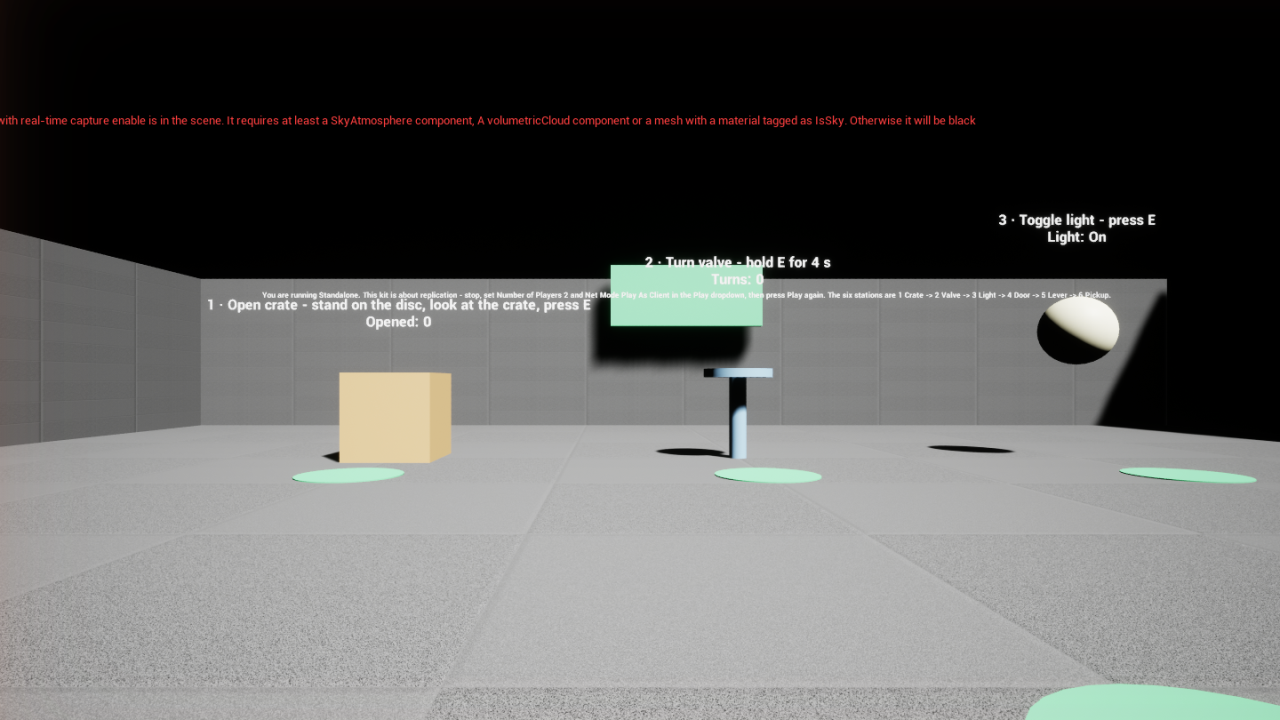
Station 1, on your left as you spawn. A plain cube that counts how often it has been opened.
| Property | Value |
|---|---|
| Preset | DA_Instant - shipped, unmodified |
| Per-instance override | PromptText = Open crate |
| Bound member | On Behavior Value Changed, and nothing else |
| Label | 1 · Open crate - stand on the disc, look at the crate, press E over Opened: <count> |
Stand on the disc in front of it, look at the crate and press E. The prompt appears when you are
in range and looking at it; the counter goes up on both client windows at the same moment,
because the number it shows is replicated state and the handler that reads it runs everywhere.
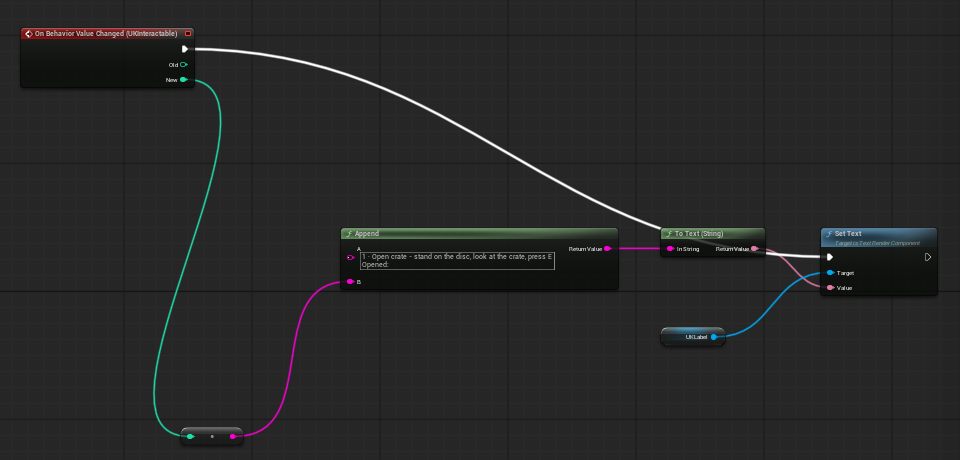
On Behavior Value Changed fires on every machine — bind it for anything the world shows or
does (meshes, lights, sounds, labels); every player sees the same result, including you. On Interaction Completed fires on the authority only — bind it for the once-per-interaction
game logic that must never run twice (give the item, open the gate, add the score). If you
change a mesh from On Interaction Completed, the other players see nothing.
Which machine? On Behavior Value Changed — Every machine. Which machine? On Interaction Completed — Authority only.
That rule is the whole reason this map exists, and it applies to the two stations below as well.
Valve
Station 2, straight ahead. A wheel on a post that turns a quarter-turn each time somebody finishes a hold.
| Property | Value |
|---|---|
| Preset | DA_UKDemo_Valve - a copy of DA_Hold with HoldSeconds 4.0 |
| Per-instance override | PromptText = Turn valve |
| Bound member | On Behavior Value Changed, and nothing else |
| Label | 2 · Turn valve - hold E for 4 s over Turns: <count> |
Hold E for four seconds. The gauge fills on the window you are playing in - that part is
predicted locally, so it is smooth - and the wheel turns 90 degrees when the server confirms the
completion. Let go early and the gauge empties and the wheel does not move: a cancelled hold never
reaches the value the wheel is driven from, so the other player sees nothing turn. The interactable
itself does go back to Idle on every machine when you let go - that is replicated, and it is how
the other player's prompt becomes usable again.
Which machine? On Behavior Value Changed — Every machine.
Two players at once. Send the second client to the other disc near the valve and have both players press and hold. One of them gets the valve; the other is told, in the prompt's why-not line, that somebody else is using it. That is the message the sign quotes.
On your own, with two windows (untested): start the hold in client 1, then click on client 2's window while client 1 is still holding. Whether client 1's hold survives losing window focus depends on how the editor flushes held keys when a PIE window is deactivated, and this kit has not measured it on any supported engine - all of its automated test runs are headless. Treat the two-player form above as the reliable one, and this sequence as something to try rather than something the kit promises.
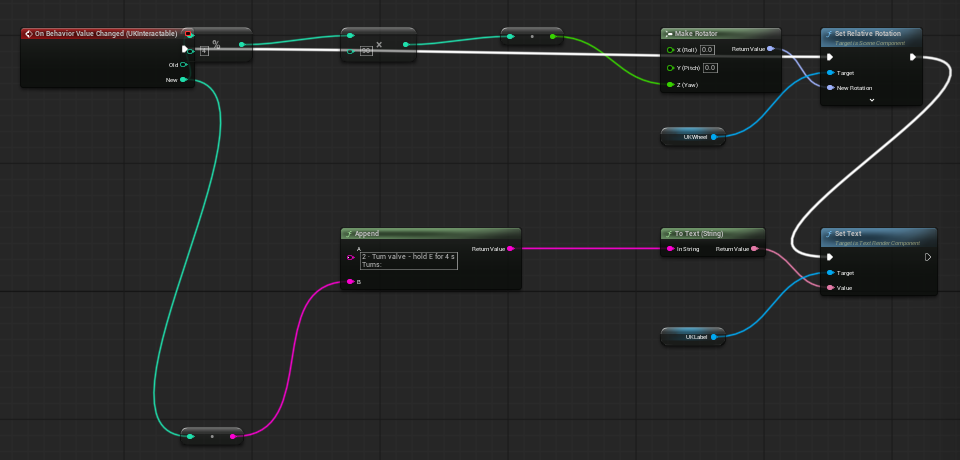
The rule quoted under the crate applies here unchanged.
Light
Station 3, on your right. A sphere with a point light inside it, on or off.
| Property | Value |
|---|---|
| Preset | DA_UKDemo_Light - a copy of DA_Toggle with bInitiallyOn true |
| Per-instance override | PromptText = Toggle light |
| Bound member | On Behavior Value Changed, and nothing else |
| Label | 3 · Toggle light - press E over Light: On / Light: Off |
Press E; the lamp, the emissive glow and the label all change on every machine at once. The
handler is deliberately written without an "only do something if the value changed" test in
front of it, and that is not sloppiness: a player who joins after the lamp was already lit gets one
derived broadcast carrying the current value, and a handler that skipped it would leave that player
staring at a dark sphere the others can see glowing. Copy this handler's shape, not the defensive
one.
Which machine? On Behavior Value Changed — Every machine.
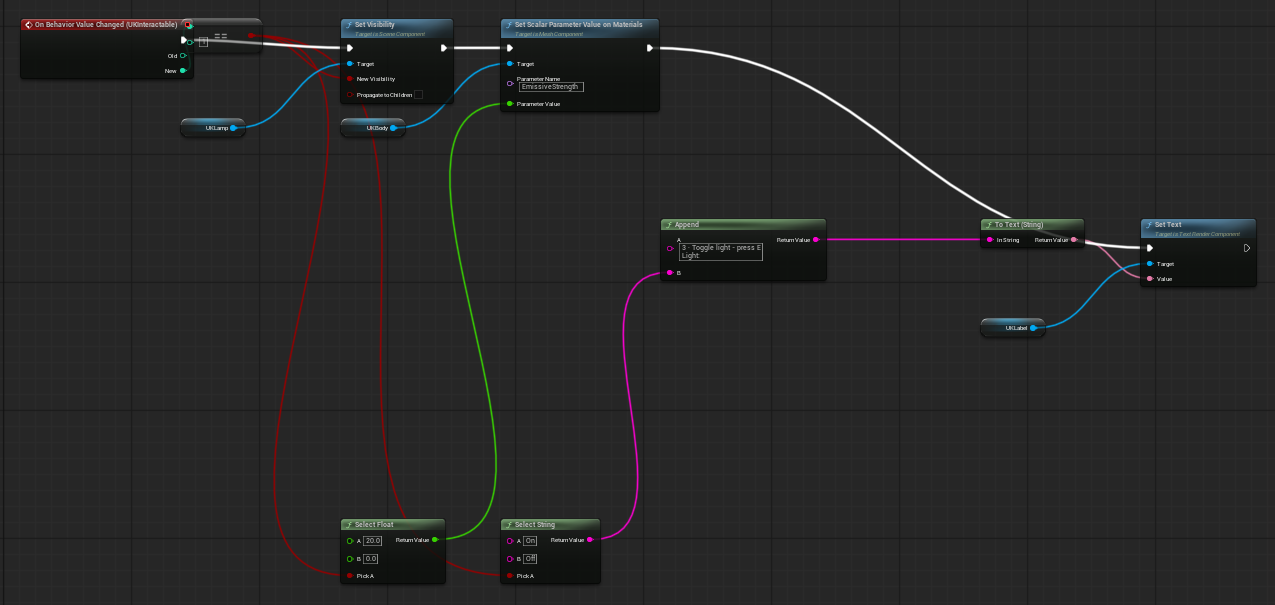
The rule quoted under the crate applies here too.
Door
Station 4, behind you as you spawn. A tall slab hinged at one edge that swings open and shut on the same press - and refuses to move at all once the lever beside it is thrown.
| Property | Value |
|---|---|
| Preset | DA_Door - shipped, unmodified |
| Per-instance override | PromptText = Open door |
| Bound member | On Behavior Value Changed, and nothing else |
| Label | 4 · Open door - press E (lever 5 locks it) over Door: Closed / Open / Locked |
Stand on the disc, look at the door and press E. It swings 90 degrees on both windows at the
same moment, and pressing again closes it. Nothing about the door is animated by the kit: the
handler reads the number the interactable already replicates and turns the mesh itself.
The whole door is two bits of one integer - bit 0 is open, bit 1 is locked - and the handler
decodes them with ordinary Blueprint integer arithmetic (AND with 1, AND with 2). There is
a Get Is Door Open node in the kit and the demo deliberately does not use it: see
presets.md for both spellings side by side, and
presets.md for the encoding table.
Which machine? On Behavior Value Changed — Every machine.
Lever
Station 5, straight behind the spawns. A cube handle on a post that flips down and up, and locks the door at station 4 while it is down.
| Property | Value |
|---|---|
| Preset | DA_Lever - shipped, unmodified |
| Per-instance override | PromptText = Throw lever |
| Bound member | On Behavior Value Changed, and nothing else |
| Label | 5 · Throw lever - locks door 4 over Lever: Up / Lever: Down |
Press E: the handle pitches, and the door you just opened stops answering. Walk back to it and
the prompt's why-not line reads Locked. Throw the lever again and the door works again.
This station is the map's one worked example of which machine?, and it is worth reading twice. It binds one event, and that one handler does two jobs on different machines:
- It moves the handle and updates the label.
On Behavior Value Changedfires on every machine, so every window sees the handle move. Anything the world shows belongs here. - It calls
Set Door Lockedon the door, behindHas Authority→Branch, fed by the same is the new position down? compare that poses the handle.Set Door Lockedis a state write, so only the authority's pass through the handler reaches it. Off the authority the call would not fail loudly - it does nothing at all (oneVerboselog line), because the server owns the lock bit - so theHas Authoritybranch is there to make the graph say what actually happens, not to avoid an error.
Set Door Locked is an Advanced node and one of exactly two the demo uses (the other is
under Key). Everything else in this map is a Simple node.
Which machine? On Behavior Value Changed — Every machine. Which machine? Set Door Locked — Authority only.
The handler reads the position it moved to straight from the event's own new value, so the handle, the label and the lock always agree. presets.md has the rest of the lever, including what happens at the last position of a non-wrapping one.
Pickup
Station 6, behind you on the right. A glowing key. One player gets it, the other is told so, and it comes back ten seconds later.
| Property | Value |
|---|---|
| Preset | DA_Pickup - shipped, unmodified |
| Per-instance override | PromptText = Take key |
| Bound members | On Phase Changed and On Behavior Value Changed |
| Label | 6 · Take key - press E; two players race over Taken: 0 · back in 0s |
Send both clients to the disc and press E in the same second from both windows. Exactly one of
them takes it: that window's Taken: count goes up, and the other window's prompt says
Already taken. The key then disappears on both windows, the label counts down from 10, and
the key comes back.
Three things are worth noticing:
- The loser is told the truth, not a shrug. For a moment after the take, the key is still there and still pressable - that window is inside the grace window, and it hears Already taken. Press it later, once the key is gone, and the answer is Not available instead. Both words are the kit's; neither is typed into this map.
- The countdown costs nothing on the wire.
Get Pickup Respawn Remainingis derived from the replicated tuple and the server clock, so both windows count the same key back without a byte being sent for the countdown. It is the demo's second (and last) Advanced node, and the label reads it onTick. - The count and the marker are one integer. Bit 0 says taken, the rest is the count - which is why the label divides. presets.md has the table.
- Both numbers come from one place. The label's tick reads the interactable's own tuple with
Get Stateand hands it straight toGet Pickup Respawn Remaining; nothing about the key is stored in the Blueprint, so a window that joins late is right on its first frame.
Which machine? On Phase Changed — Every machine. Which machine? On Behavior Value Changed — Every machine. Which machine? Get Pickup Respawn Remaining — Every machine.
The key hides itself on On Phase Changed (the phase goes Disabled when it is gone and Idle
when it returns) rather than on a timer of its own: a player who joins while the key is away gets
the phase in their first update and sees an empty disc, exactly like everybody else.
The sign
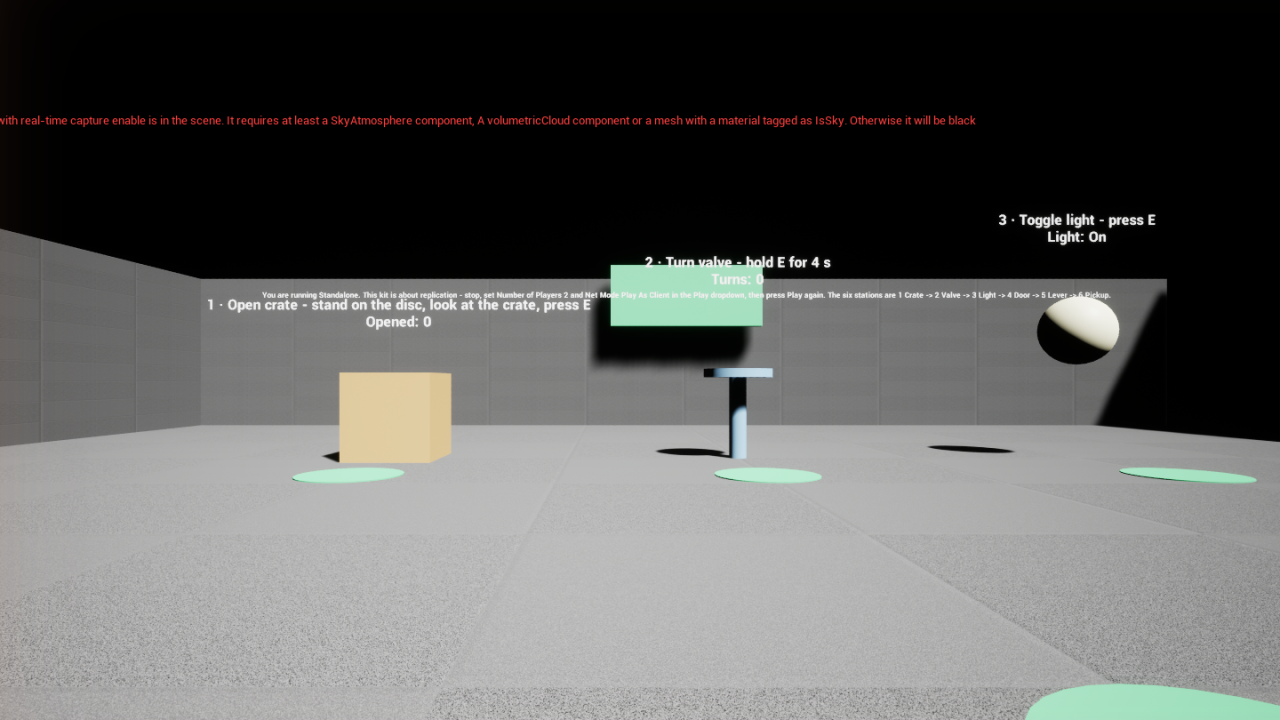
The sign on the far wall reads your net mode at BeginPlay and says one of two things.
Standalone, or a single player:
You are running Standalone. This kit is about replication - stop, set Number of Players 2 and Net Mode Play As Client in the Play dropdown, then press Play again. The six stations are 1 Crate -> 2 Valve -> 3 Light -> 4 Door -> 5 Lever -> 6 Pickup.
A client on a dedicated or a listen server:
Two clients on a server. Everything below is replicated state. 1 Crate -> 2 Valve -> 3 Light -> 4 Door -> 5 Lever -> 6 Pickup. Two players: one holds E on the valve while the other presses E - you will see 'Someone is using this'.
Both strings are defined in one place and quoted identically here, in the map and in the kit's
tests. The why-not text inside the second one is the kit's own
NotUsable reason, read from the reason table rather than typed - which is why the sign says
exactly what the prompt will say.
The map also renders correctly with Substrate on and with Substrate off; the kit's materials use neither path's features.
Known gaps
Everything on this list is something the kit does not prove, stated so you do not have to discover it.
-
The screenshots are captured by hand. Every automated run of this kit is headless (
-nullrhi), so the three handler graphs (5.6) and the two Substrate renders (5.8) were captured in a real editor window and are checked by eye, never by pixel. A screenshot in this kit confirms what you already read - it never carries an instruction of its own. The Substrate renders show the engine's red on-screen sky-light warning; it is the editor's message about the map's sky light, not a Substrate result. -
The editor's wording was read, not tested. The Plugin Content setting, the folder label and the Play dropdown's labels on this page were read off the 5.6, 5.7 and 5.8 editors by hand; no automated test re-checks them, so a later engine hotfix could rename one without this page noticing.
-
The solo two-window valve sequence is untested. Whether a hold survives a PIE window losing focus is an editor behaviour this kit has never observed. Use two players.
-
Engine coverage. In one line: "supported on 5.6–5.8; multiplayer end-to-end suite run on all three". On 5.6, 5.7 and 5.8 the compile, logic, reflection and structural suites pass, and so do the networked session tests.
Related
- quick-start.md - the seven steps this map is the finished form of.
- events.md - the event every station binds, and the four others.
- behaviors.md - Instant, Hold and Toggle, and writing your own.
- presets.md - Door, Lever and Pickup in full: the encodings, the two-event recipe and the which machine? line for every member stations 4-6 touch.
- preset-schema.md - the two per-instance overrides.
- prompt.md - the prompt the stations show, and how to replace it.
- testing.md - running the kit's own suite, including the tests that read this map.